What changed on November 6?
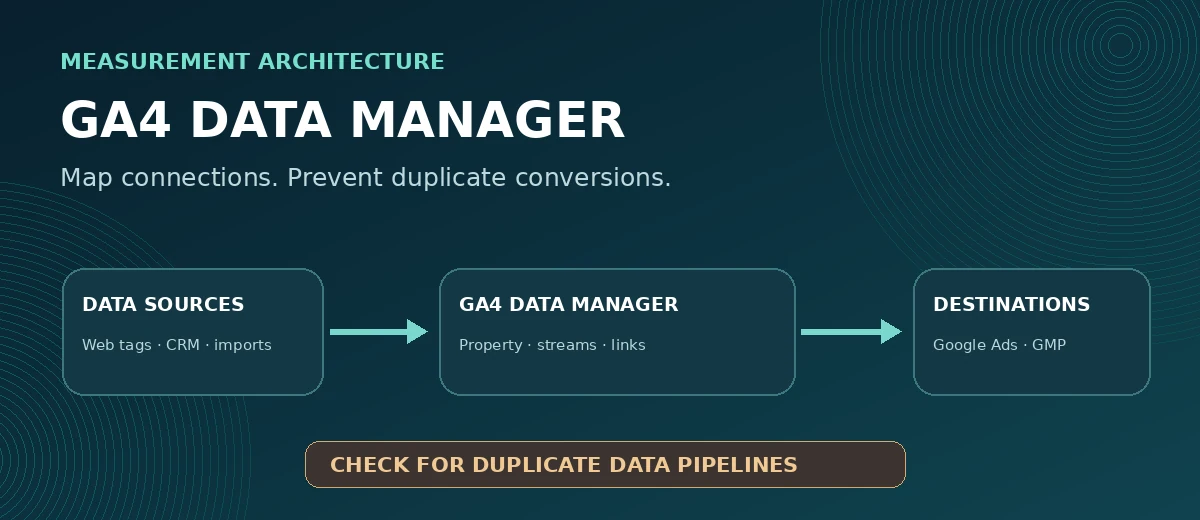
Google announced Data Manager in Google Analytics (beta) on November 6, 2026. The new Admin interface brings web and app streams, product links, data imports and connection diagnostics into a central view. A visual connection map shows how data moves from its source through the Analytics property to downstream destinations.
This can help teams inspect a complicated measurement setup without jumping between several connection screens. But a clearer map does not, by itself, verify that events are being counted correctly.
The double counting risk
Google warns against activating an identical data pipeline in GA4 Data Manager and Google Ads or Google Marketing Platform at the same time, because doing so can record conversions twice. Existing data imports in GA4 appear automatically. Google recommends that existing Ads or GMP connections continue to be managed through their original interfaces instead of being duplicated in GA4.
This distinction matters for agencies where analytics, advertising and CRM integrations are maintained by different teams. An apparently new option in GA4 may be another path for data that already reaches a destination.
Who should check their setup?
The release is especially relevant to GA4 administrators, ecommerce businesses, performance marketing teams and agencies using Google Ads or Google Marketing Platform, offline conversion uploads, CRM integrations, or multiple web and app streams.
The Data Manager landing page is a beta feature. Google's documentation states that GA4 subproperties and roll-up properties do not currently support that landing page.
A practical connection and conversion review
- Inventory existing connections. Before adding anything, record your GA4 streams, imported data sources, Google Ads and GMP links, and the accounts receiving conversion data.
- Trace each pipeline. Use the Data Manager connection map to follow sources to the GA4 property and onward to destinations. Note feeds that already operate through Google Ads or GMP.
- Avoid duplicate activation. Do not create a second pipeline for the same underlying conversion data without confirming the intended ownership and destination behavior.
- Inspect connection diagnostics. Follow broken-connection indicators, but distinguish configuration health from event correctness.
- Compare actual measurements. After a connection change, check relevant event and conversion counts in GA4 and destination platforms. Investigate unexpected spikes, repeated transaction IDs and apparent double counting.
- Test consent independently. In fresh browser sessions, compare before-consent, Reject and Accept states using developer tools, Tag Assistant where appropriate, and observed network requests. Confirm how CMP choices and Google Consent Mode signals affect tracking behavior.
What Data Manager cannot prove
A connection map can show how products and data sources are configured, and diagnostics can highlight problems in those connections. That does not establish whether a visitor's consent choices were respected, whether a specific tag executed at the right time, or whether a particular request was appropriate under the relevant rules.
PlainPrivacy treats those as separate checks: connection inventory, event and conversion verification, and browser-level consent behavior. A restricted Google request under denied consent is not automatically a defect; interpretation depends on the configured Consent Mode behavior and what was transmitted.
What PlainPrivacy recommends
Use the new GA4 Data Manager first as an inventory and troubleshooting tool. Before activating new data imports or product connections, document existing routes and agree which system owns each pipeline. Then verify the resulting events in the browser, GA4 and the destination platform.
For sites with consent management, verify the consent flow separately rather than assuming a healthy connection status means the integration behaves correctly.
TRACKING & CONSENT SUPPORT
Need to review how your conversion data reaches Google Ads?
PlainPrivacy can investigate a defined GA4, GTM or Ads tracking issue and separately check observable consent behavior. Complex setups receive a fixed quote before work begins.
Explore Tracking RepairTechnical verification only. No legal compliance or advertising-performance guarantee.